
Windows
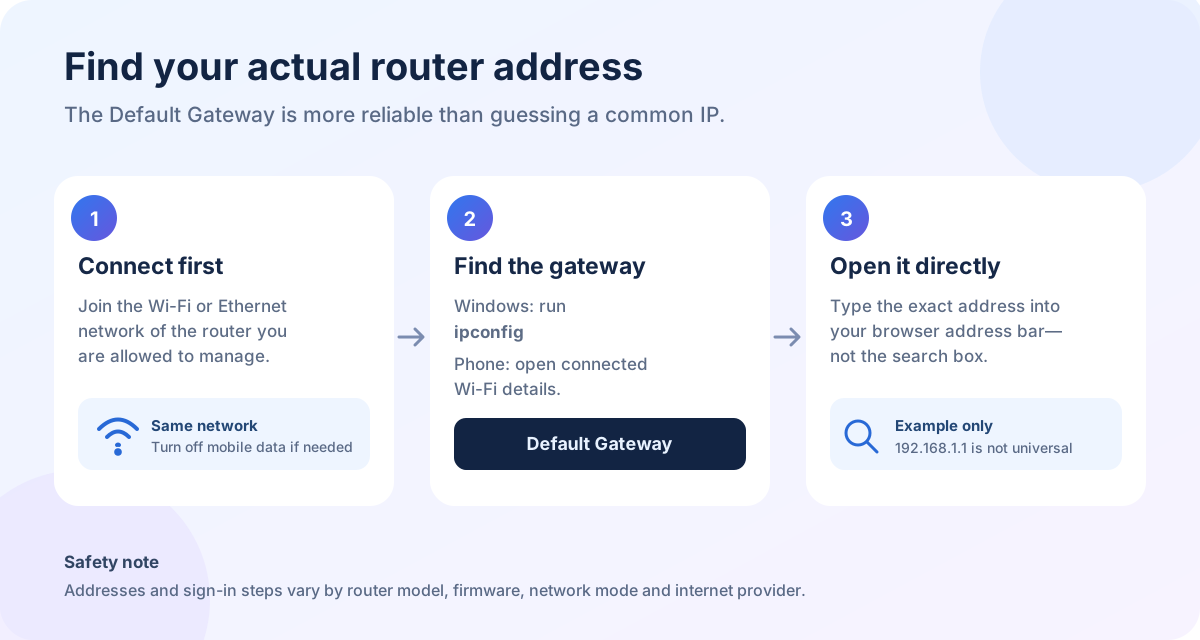
- Open Command Prompt.
- Run
ipconfig. - Look for Default Gateway under the connected adapter.
macOS
- Open System Settings and choose your connected network.
- Open network details and look for Router.
Android and iPhone
Open the details for the Wi-Fi network you are currently using. Look for Gateway, Router, or similar wording. The label varies by device and version.
Linux
Open a terminal and check the default route with your network tools. The address after default via is normally the gateway.
How to Find Your Router IP Across Operating Systems
| Device / Platform | Step-by-Step Command or Path | Field to Read |
|---|---|---|
| Windows 11 / 10 | Open Command Prompt or PowerShell → type ipconfig |
Default Gateway |
| Apple macOS Sequoia | System Settings → Wi-Fi → Details → TCP/IP | Router |
| Apple iPhone / iPad (iOS 18) | Settings → Wi-Fi → tap (i) next to your network | Router |
| Android 15 / 14 | Settings → Network & Internet → Wi-Fi → Gear icon | Gateway |
| Linux (Terminal) | Open terminal → run ip route show default |
default via [IP] |
How to interpret the gateway result
The gateway is the local next hop used by your device. It may be a private address such as 192.168.1.1, 192.168.0.1, 10.0.0.1, or another address chosen by the router or ISP. Copy the value exactly; do not replace digits with letters.
If no gateway appears
Reconnect to the intended Wi-Fi, disable mobile data or another active network temporarily, and renew the connection. A blank result can mean the device is not connected, DHCP has not completed, or the network is managed by another gateway.
Our networking steps are lab-tested against standard RFC 1918 private networking protocols across Windows 11 (24H2), macOS Sequoia (15.1), iOS 18, and Android 15. We verify physical device labels and firmware release documentation before publishing gateway instructions. Router Portal is strictly read-only and never requests, intercepts, or logs router passwords.