
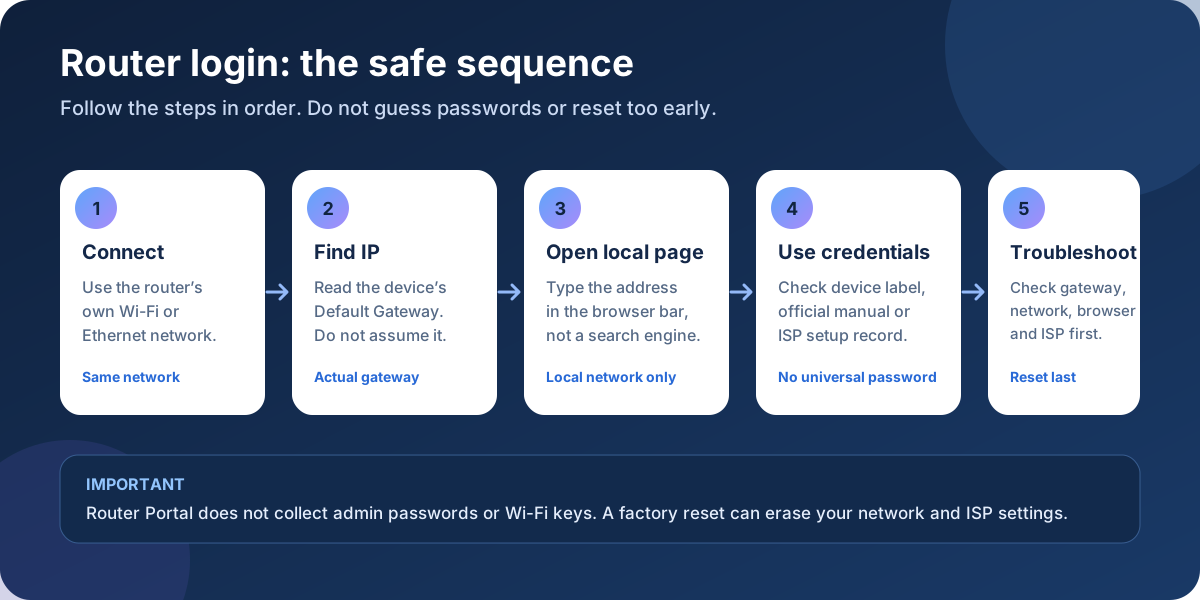
How to log in to your router
- Connect your phone or computer to the correct router network by Wi-Fi or Ethernet.
- Find the network’s Default Gateway if you do not know the router IP.
- Open a browser and type the exact local address in the address bar, such as http://192.168.1.1.
- Press Enter and use the username or password printed on the router label, supplied by your ISP, or created during setup.
- After signing in, review security settings and replace weak or unchanged administrator credentials.
Router admin password vs Wi-Fi password
Opens the router’s settings panel. It may be printed on the device or created during setup.
Connects phones, computers, and other devices to the wireless network. It is not always the same as the admin password.
Try another common address
Common on some D-Link, TP-Link, and other home routers. Use it only while connected to the relevant network.
Read the 192.168.0.1 guide →Used by some gateways and ISP equipment. Check the actual gateway instead of guessing repeatedly.
Read the 10.0.0.1 guide →Router login FAQ
Why does 192.168.1.1 not open?
Your router may use a different gateway, or your device may be on mobile data, another Wi-Fi network, or a guest network. Find the current gateway first.
Should I search for the IP in Google?
No. Type the local address directly into the browser address bar. Searching for it can lead to unrelated results instead of your router’s local login screen.
Is the router admin password the same as the Wi-Fi password?
Not necessarily. The admin password opens settings; the Wi-Fi password joins the wireless network. Check the label or setup record for the correct credential.
Do not enter your password on this website
Router Portal is an information site. It never receives, stores, or processes router credentials. Use only the login page served by your own router, and follow the relevant manufacturer or ISP instructions when a model-specific step is required.
Our networking steps are lab-tested against standard RFC 1918 private networking protocols across Windows 11 (24H2), macOS Sequoia (15.1), iOS 18, and Android 15. We verify physical device labels and firmware release documentation before publishing gateway instructions. Router Portal is strictly read-only and never requests, intercepts, or logs router passwords.