
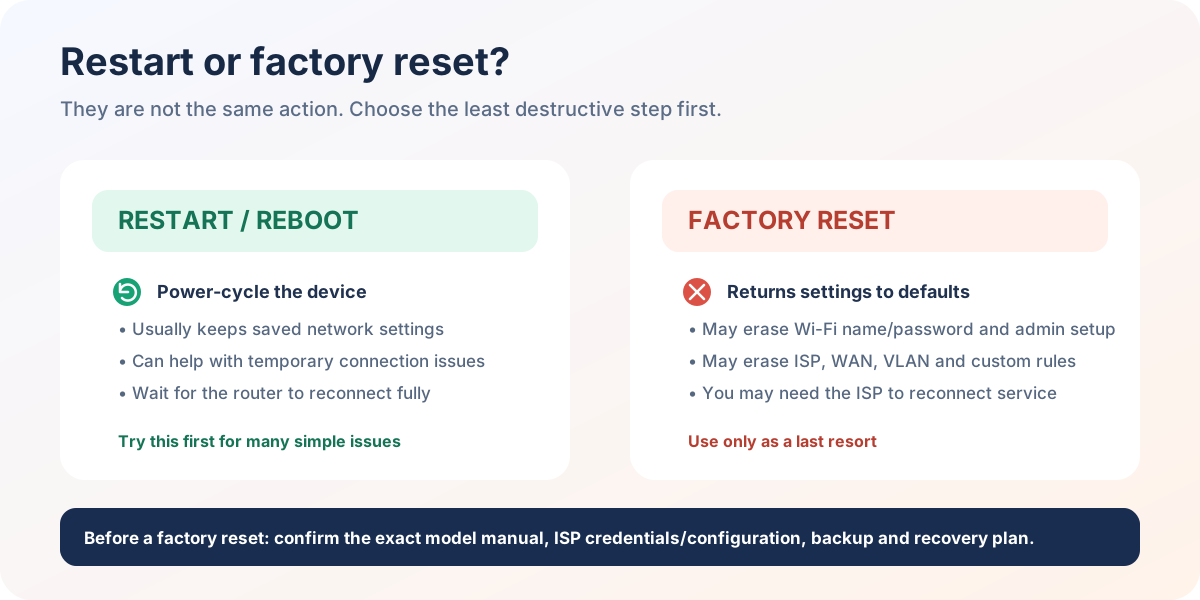
Do not reset first. A reset can erase your Wi-Fi name, Wi-Fi password, ISP configuration, admin password, port forwarding, and custom rules.
Before pressing reset
- Find the model and setup information.
- Record settings you will need again.
- Check whether a simple restart or gateway correction solves the problem.
- Make sure you know how to set up the connection afterward.
General reset process
- Keep the router powered on.
- Use the reset control specified for your model.
- Hold it only for the documented duration.
- Wait for the router to restart fully.
- Run the initial setup and create new passwords.
The exact reset method differs by model. Do not use a random timing rule when you are unsure.
Restart, recovery, or reset?
| Action | What it changes | When it fits |
|---|---|---|
| Restart | Temporarily power-cycles the device | Slow or stuck service with known settings |
| Gateway check | Changes nothing | Login address is unknown or does not open |
| Official recovery | Depends on model | Admin credential is lost and recovery exists |
| Factory reset | Erases configuration | Last resort with ISP/setup information ready |
After a reset, verify the WAN connection, create separate admin and Wi-Fi credentials, update firmware from the exact manufacturer source, and review remote management before reconnecting household devices.
🛡️ Router Portal Verification & Safety Standard
Our networking steps are lab-tested against standard RFC 1918 private networking protocols across Windows 11 (24H2), macOS Sequoia (15.1), iOS 18, and Android 15. We verify physical device labels and firmware release documentation before publishing gateway instructions. Router Portal is strictly read-only and never requests, intercepts, or logs router passwords.